
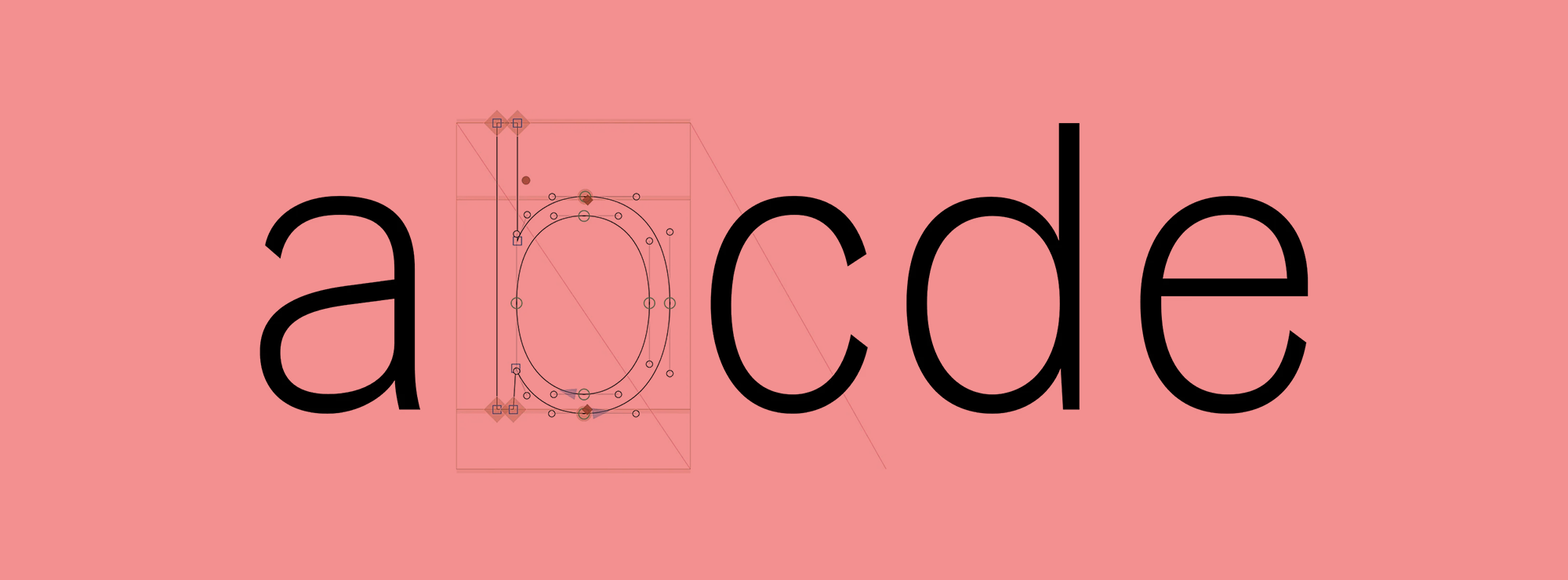

Making a font has always been a craft worth taking seriously. The tools to do it have never been more accessible, and whether you want to turn your handwriting into something you can type with or build a family you could sell, there is a route that fits where you are right now.
An artist finishes a run of hand-lettered posters and wonders whether the alphabet could become something to type with. A lettering artist wants to take what she draws in Illustrator further. A type designer at a studio is building a full family and needs to know which tool fits the job. All three are asking the same question: how do you actually make a font?
Type design has always rewarded skill and patience. What has changed is the on-ramp. In late 2026 the field splits into four routes and the right one depends entirely on what you are starting with and how far you want to go.
Route 1: Handwriting to font
This is what most people picture when they say they want to make their own font. You write out the alphabet, software reads it back and somewhere at the end of the process you have an installable file to type with.
Calligraphr (web, free or $10 for a Pro month) is the reference tool for this. The workflow is pleasingly analogue: download a template, fill it in with any pen or brush you like, scan it back in and clean each glyph in the built-in editor. The result is a TTF or OTF you can install and use immediately. Its best trick is character randomisation: draw several versions of each letter and they rotate as you type, so the text reads as (more) genuinely handwritten rather than mechanically stamped. On the free plan you get 75 characters and two variants per letter, which is enough to test the idea; a single Pro month gives you 600 characters plus 15 variants and fonts made during that month keep working after it ends. For most people, one paid month is sufficient.
Fontself for iPad ($19.99, iPadOS 16 and later) goes further. Draw straight onto the screen with Apple Pencil using pressure-sensitive brush, pencil, pen, marker or qalam reed tools thenFontself handles spacing and kerning automatically. It exports OTF and sends fonts straight into Procreate, which makes it the obvious choice for anyone already working in that app. A $14.99 in-app pack unlocks use across other apps and devices.
iFontMaker (iPad, around $12.99) is one of the longest-running iPad font editors, with Bézier editing, kerning and ligatures now part of version 3. Finger or Pencil, your choice.
One warning: the free “font maker” apps that fill the App Store are often keyboard skins on weekly subscriptions of around $4.99 and many do not export a real font file at all. Check before downloading.
The honest limits: spacing is usually approximate, the character set tends to be small and letters cannot join up the way a real script does. For preserving your own hand or a child’s writing as a font, this route is perfect. For a serious text family, you will outgrow it quickly, which is when Routes 3 and 4 come in.
Route 2: Lettering inside design apps
If you already draw in Illustrator or Photoshop, Fontself Maker is the most natural fit. It is an extension panel: drag your vector shapes or Photoshop layers onto it and each becomes a character. It handles auto spacing, kerning, alternates, ligatures and colour fonts in OpenType-SVG, the format that lets a font carry textures and multiple colours in a single file.
The Illustrator version costs $39; the bundle with Photoshop is $59, with free updates and no subscription. Up to 50% off for students and teachers. Alex Trochut is among the designers who use it; the team also points to Tré Seals of Vocal Type as someone who came into type design through the tool.
The limits are real: you are still working in a drawing app, so there is no interpolation between weights and only light OpenType control. It is not where you would build a text family. But for a POP reader whose screen print stencils or letterpress-inspired alphabet already lives in Illustrator, this is the most direct route from finished lettering to a working font… an afternoon’s work rather than a week’s, and a natural first step toward the pro tools.
Route 3: Browser editors
Zero-install editors are the fastest-growing corner of the field. Carl Enlund, the Stockholm design engineer who makes FontBob, started a thread on TypeDrawers in January 2026 mapping them, arguing they may bring type design to people who would never open a conventional font editor.
FontStruct (free) is the most workshop-friendly of the group. It builds fonts from geometric tiles on a grid, like bricks. Rob Meek made it for FontShop in 2008, and within five years users had made over 650,000 fonts with it. Perfect for pixel, stencil and modular display faces; fonts can be shared under Creative Commons licences. The constraint of the grid is a feature rather than a bug: it is exactly the kind of creative restriction that suits a print-thinking designer.
Glyphr Studio (free, open source) runs entirely in the browser with no sign-up and aims squarely at hobbyists. Version 2 became the default in January 2024. It covers drawing, components, ligatures, kerning and SVG import from Illustrator or Inkscape, which makes it a sensible bridge for someone who does their drawing elsewhere and wants to assemble it as a font.
FontBob is built for new designers and has been used in design workshops at Stockholm schools. Opinions on TypeDrawers are divided: at least one workshop leader found it the fastest way to get participants going, while type veteran Thomas Phinney raised reservations about some of its interface choices. FontBob’s site is light on pricing and feature detail, so if it interests you a hands-on test is the way to find out whether it suits your practice. Carl Enlund is reachable and has been open to feedback from the design community.
Fontra (free, open source) is the most technically serious option in this group: a cross-platform, variable-first editor developed by Black[Foundry] and Just van Rossum with support from Google Fonts. It runs in a browser but needs the Fontra Pak app installed locally and reads Glyphs files. Still described as in development, but aimed at designers who are serious about type and want something powerful without paying for a desktop application.
Route 4: Professional editors
Glyphs 4 (Mac, €319; students €159; teachers €199) released on 27 July 2026, the first major version since Glyphs 3 in 2020, and it is what most Mac-based type designers use as their main tool. New in version 4: pen points for flexible strokes, COLRv1 colour fonts, visual kerning groups, a redesigned left sidebar with a Shapes tab that works like Illustrator layers, and a Text Preview window for testing alignment, leading, tracking and OpenType features. A 30-day free trial is available. For workshops, Glyphs offers free temporary licences for participants, which makes it unusually accessible as a teaching tool.
Glyphs Mini 2 (Mac, €49, also on Setapp) uses the same drawing engine but without multiple masters, variable fonts, colour fonts, custom OpenType code or plug-ins. No new Mini came out alongside Glyphs 4, which some in the community noticed, but it remains a good step up from the handwriting tools for someone who has outgrown Calligraphr and wants proper Bézier control.
FontLab 9 (Mac and Windows) is the main cross-platform professional option and the natural pick for Windows users. Version 9 adds a Stem tool, Sigma for master blending, Superkerning, 500-plus improvements including a dark theme and batch export, and COLRv1 colour fonts. It also ships Aidus, optional AI assistance for editing and scripting. Pricing: $499 lifetime, $139 for a four-month starter licence, $109 a year for students, $99 for a 14-day workshop licence. Ten-day free trial.
FontCreator (Windows and Mac, $49 to $199 depending on edition) by High-Logic offers commercial use on all three editions, which makes it a low-risk entry into the mid-price desktop tier.
FontForge (Windows, Mac and Linux, free and open source since 2004) is powerful, includes built-in auto-tracing of scanned letters and has produced serious commercial fonts. The interface is notoriously dated but the ceiling is as high as any paid tool. Carl Enlund built his free fonts Helmet and Techna Sans in it, which is as good a proof of concept as any.
Whatever tool you pick, the stages are the same. The handwriting apps simply hide most of them.
Start with a brief. Decide what the font is for: a headline display face, a text face for long reading or a personal hand. Display faces are far more forgiving for a first attempt.
Draw key letters first. The traditional starting set is “n”, “o”, “H” and “O”, often adding “a”, “e”, “g” and “s”. These letters establish the DNA of the whole face. Test them together as words before you draw the rest.
Fill the character set. Upper and lower case, figures, punctuation, then accents if the font needs to work beyond English. This is where most first fonts stall: the alphabet is 52 glyphs, but a usable Latin font runs to several hundred.
Space carefully. Setting side bearings so text has an even rhythm matters more than the letterforms themselves, according to most working type designers. Kerning — fixing awkward pairs like AV, To and LT — comes after spacing is right.
Add OpenType features if you need them: ligatures, alternates, stylistic sets. Variable weights if you are working in Glyphs or FontLab.
Fill in the name and metadata: family name, version number, licence and your contact details in the font info panel.
Export OTF for print, WOFF2 for web. Print the font at several sizes and set real text, not just the alphabet. Then decide: keep it for yourself, give it away under the SIL Open Font License, or sell it.
AI and the font you drew yourself
AI is arriving in type design in two distinct forms, and the community treats them very differently.
Inside the editor, tools like FontLab’s Aidus and a community-built Glyphs MCP Server plug-in that lets AI tools drive Glyphs 4 sit closer to auto-kerning and auto-tracing than to anything that replaces the designer. They speed up the dull parts.
Whole-font generators are another matter. Mixfont creates TTF files from a text prompt or an image, and its maker took pointed criticism on TypeDrawers in 2026 over the provenance of its training data. Jessica Walsh told Creative Bloq that her foundry, Type of Feeling, uses no third-party generative AI in its type design. A 2026 study in Visible Language by Savoie and colleagues at ECAL concluded that automation should augment designers’ agency rather than replace it.
This aligns with where we sit at POP. These tools are most valuable when what goes into them is yours: your hand, your drawn letterforms, your decisions about spacing. The whole point of making your own font is that it comes from somewhere specific. A generated font does not.
Licensing, naming and selling
Fonts made with Calligraphr, Fontself and the professional editors belong to you, with commercial use permitted. How far the law protects a typeface design varies by country, so if you are building a brand identity around a font you made, keep your working files and take legal advice.
Before settling on a name, search MyFonts, Google Fonts and trademark registers. Clashes are common and sorting them out afterwards is unpleasant.
For giving a font away, the SIL Open Font License is the standard. Carl Enlund’s Helmet and Techna Sans both use it. FontStruct fonts can go out under Creative Commons.
For selling, Typographica’s Showing & Selling Type course lays out three routes: sign with a foundry (guidance and reach, but you give up a cut and some control), sign with a retailer (Adobe, Creative Market, Fontspring, Fontstand, Future Fonts, MyFonts, Type Network, YouWorkForThem among others), or run your own shop and keep the most money while doing all the marketing yourself. Retailers like MyFonts typically pay designers around 50%, dropping to 25 to 30% when a foundry sits in the middle. With more than 4,500 independent artists listed on MyFonts, visibility is now the real problem. Being listed no longer means being found.
At a glance…
| Tool | Route | Platform | Price | Best for |
|---|---|---|---|---|
| Calligraphr | Handwriting | Web | Free, or $10/month Pro | Your own handwriting, fast |
| Fontself (iPad) | Drawing | iPad | $19.99 + $14.99 pack | Apple Pencil letterers |
| iFontMaker | Drawing | iPad | ~$12.99 | Quick hand-drawn fonts |
| Fontself Maker | Design app add-on | Illustrator, Photoshop | $39 or $59 bundle | Illustrators, colour fonts |
| FontStruct | Browser, modular | Web | Free | Pixel and grid display faces, workshops |
| Glyphr Studio | Browser editor | Web | Free, open source | Hobbyists learning outlines |
| FontBob | Browser editor | Web | Not stated | New designers, workshops |
| Fontra | Browser-based app | Mac, Windows, Linux | Free, open source | Variable fonts, the curious pro |
| Glyphs Mini 2 | Desktop editor | Mac | €49 | Stepping up from handwriting tools |
| Glyphs 4 | Pro editor | Mac | €319 (students €159) | Full families, the Mac standard |
| FontLab 9 | Pro editor | Mac, Windows | $499 lifetime or $139 for 4 months | Windows users, full families |
| FontCreator | Desktop editor | Windows, Mac | $49 to $199 | Budget all-rounder |
| FontForge | Pro editor | Windows, Mac, Linux | Free, open source | Zero budget, patient users |


Popular posts